[GUIDE] NEW GAME CHANGING SHORTCUT METHOD

First post here, I know I’m very much a noob to all this (i know don’t start it’s an addiction blah, blah, blah) but I have a new method that nobody has made yet, I think? My biggest worry has been about being caught, so I developed something that will handle this perfectly so you can never get caught. [Note: if you want even better results, get yourself a privacy screen protector, it makes green light go away almost when looking at it from the side.]

Before you guys start this guide, I should warn you know that the maximum recording FPS is set to 30 for this method, but you can record in 4K. Personally I like 30 fps for when you are editing screenshots, it causes less motion blur, but it doesn’t look the best when making gifs. [Also I know you could just use the Discreet App, but I wanted a free method, you can also connect the Discreet App to this and get even better results.]
Also shout out to @Lizzy for this idea, I built off their shortcut for this.

[Features:]

Pitch black screen.

In-app storage/photo vault so it doesn’t save to your photo-roll if you get caught.

4K video recording.

Toggle recording on or off with Action button.

Never shows the recording app, instantly takes you to the home screen.

Auto save recording.

Video Stabilization.

[Requirements]:

Action button.

FastCam app by Monocraft.

Reduce white point set to 100%. (you can turn this off after)

Color Filters set to Grayscale.

Auto-Brightness turned off.

Focus Mode (Name it whatever, I prefer Stealth).
Here is the screenshot of the entire shortcut for anyone who wants to skip the tutorial (go to the end to see how to configure FastCam app):

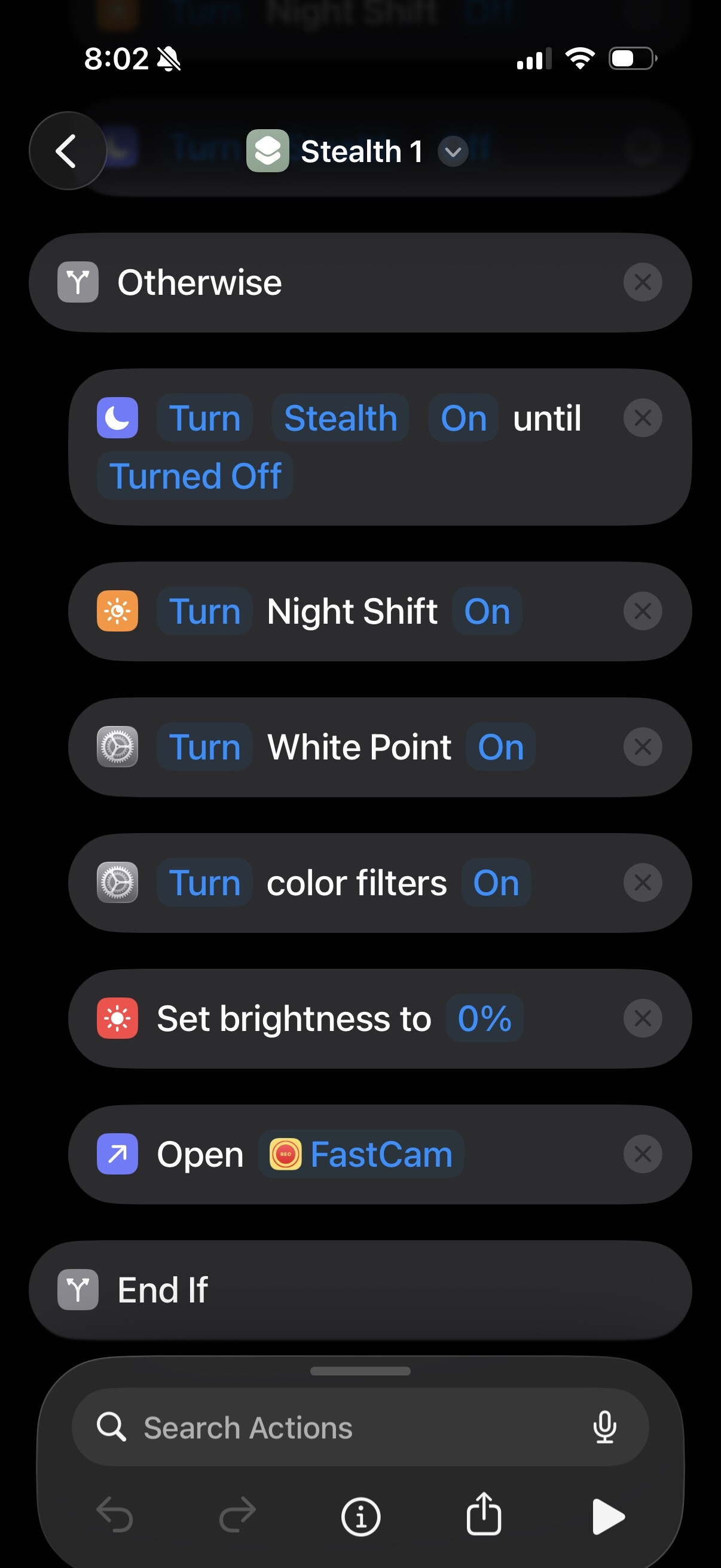
We do the extra night shift and color filters because I researched this is the only TRUE way to get your iPhone as close as you can to pitch black, this also lowers the stupid green light on the front of your camera as much as physically possible.

Lets start!

Okay now for a more in-depth tutorial:

First you will need an iPhone for this (preferably an iPhone 15+ with an action button, but it’s not required for the shortcut.)

Go to Settings>Focus and create a new Focus, name it “Stealth” or whatever you want.

Next, open up Shortcuts app, click the + on the top right of library to create a new shortcut.

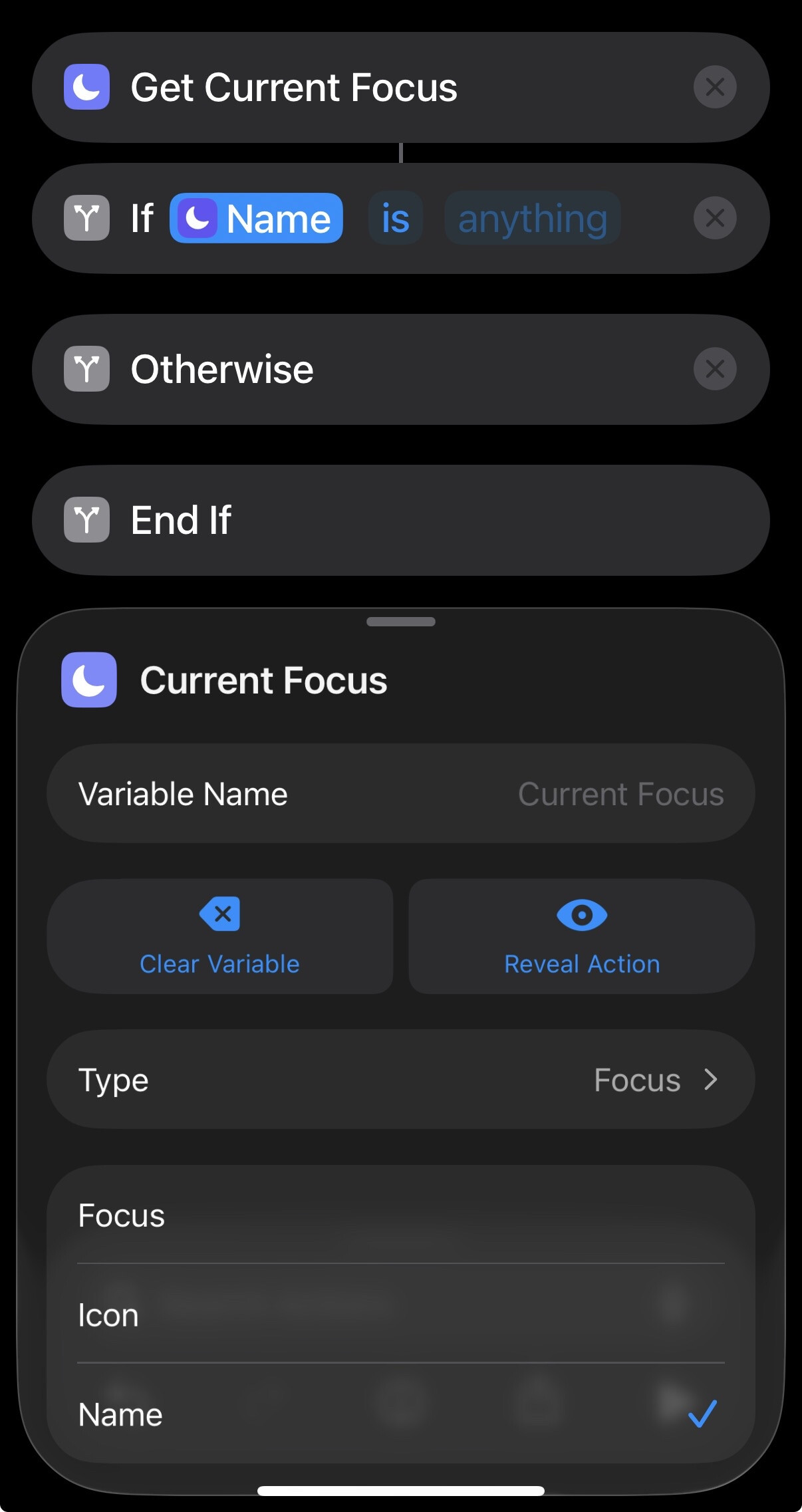
Click Search Actions, and search for Get Current Focus.

Click Search Actions, and search for If, tap on it and click Condition, set the Condition to Current Focus.

Now bear with me on this step, Click Icon (Highlighted in Blue), and swap it from Icon to Name.
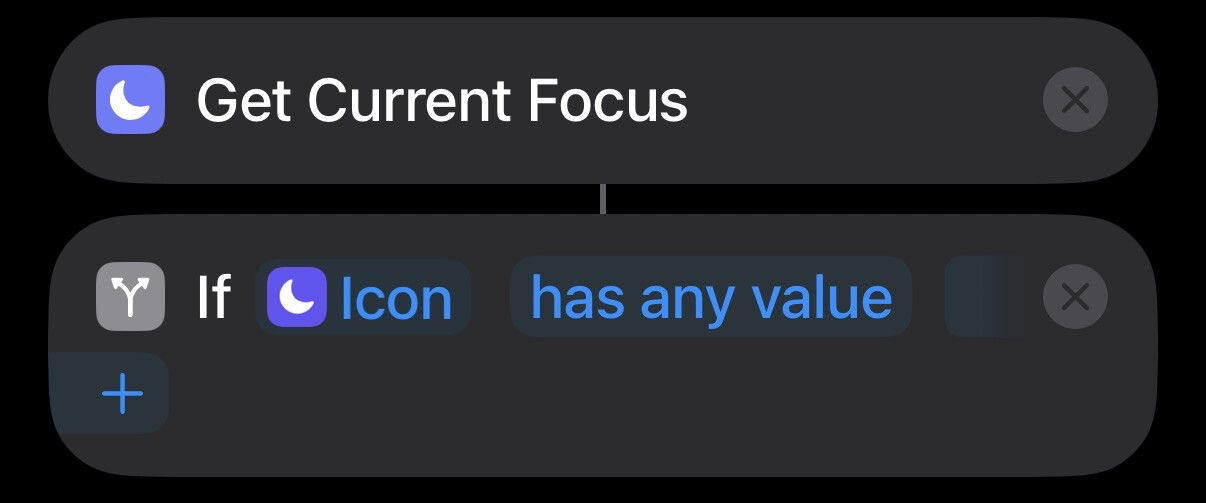
Now in that box that says anything next to is, we are going to put our Focus Mode’s name. Mine is Stealth so I’m going to input that.

This is the easy part now, just add in all these blocks and DRAG them UNDER the first If block:
Add Go to Home Screen.

Then add Set brightness, change it to 20% or whatever you want.

Then add Set White Point, set it to off.

Then add Set color filters, set it to off.

Then add Set Night Shift, set it to off.

Then add Set Focus, set it to your focus mode we talked about, and set it to off.

Now, under your Otherwise block, and drag all of these UNDER the OTHERWISE block:
Add Set focus, set it to your focus mode, and set it to on.

Then add Set Night Shift, set it to on.

Then add Set White Point, set it to off.

Then add Set color filters, set it to off.

Then add Set brightness, change it to 0%.

Lastly, add Open App, and set it to Fast Cam.

Now we are on the last two steps which are quick!

Open the Fast Cam app, we are going to configure the settings(Top right corner):
[Optional] You can set a password for your password vault, highly recommended.

Make sure that store videos is saved to your In-app album, this should be default.
(remember you can always download your videos to your photos app easily)

Make sure your default camera is set to the Rear wide camera.

Turn OFF record timestamp.

Turn ON Auto start recording. (Important)

Under Quality options in Rear Camera, set the quality to 4K.

Lastly open Settings>Action Button, and set the action button to our shortcut.

Now we are done. I am super sorry for the long tutorial, it took me a very long time to figure all of this out, but it’s worth it if you don’t want to pay for the Discreet app, also I believe this shortcut is better in many ways because it does all the same things the Discreet app does, but it’s much quicker and it’s only one button.

Please let me know if you guys need any help, or if there is any questions you have.

Also if anyone can find a better app than FastCam which is Free, records in 4K60FPS, and has an in-app vault, let me know.
42 Likes

Ok, this what I’m talking about!!
I only skimmed through it but that new green light was my only issue. I’ll read again to see how to turn that off.

Good job on the free app, I’ll check it out for sure now, with a vault etc. curious if it affects how files are saved/transfered. I have found the HEVC file better, no transition when transfering, and using a free app that scales the file size back up by almost a third at times.

Don’t forget,
Settings> accessibility has the option to setup a triple click for reduce whitepoint, so once the shortcut is started and white point reduced, if you need to go back to use your phone all you need to do is triple click the power. You would need to say Hey Siri again or click the shortcut icon to go back to work.

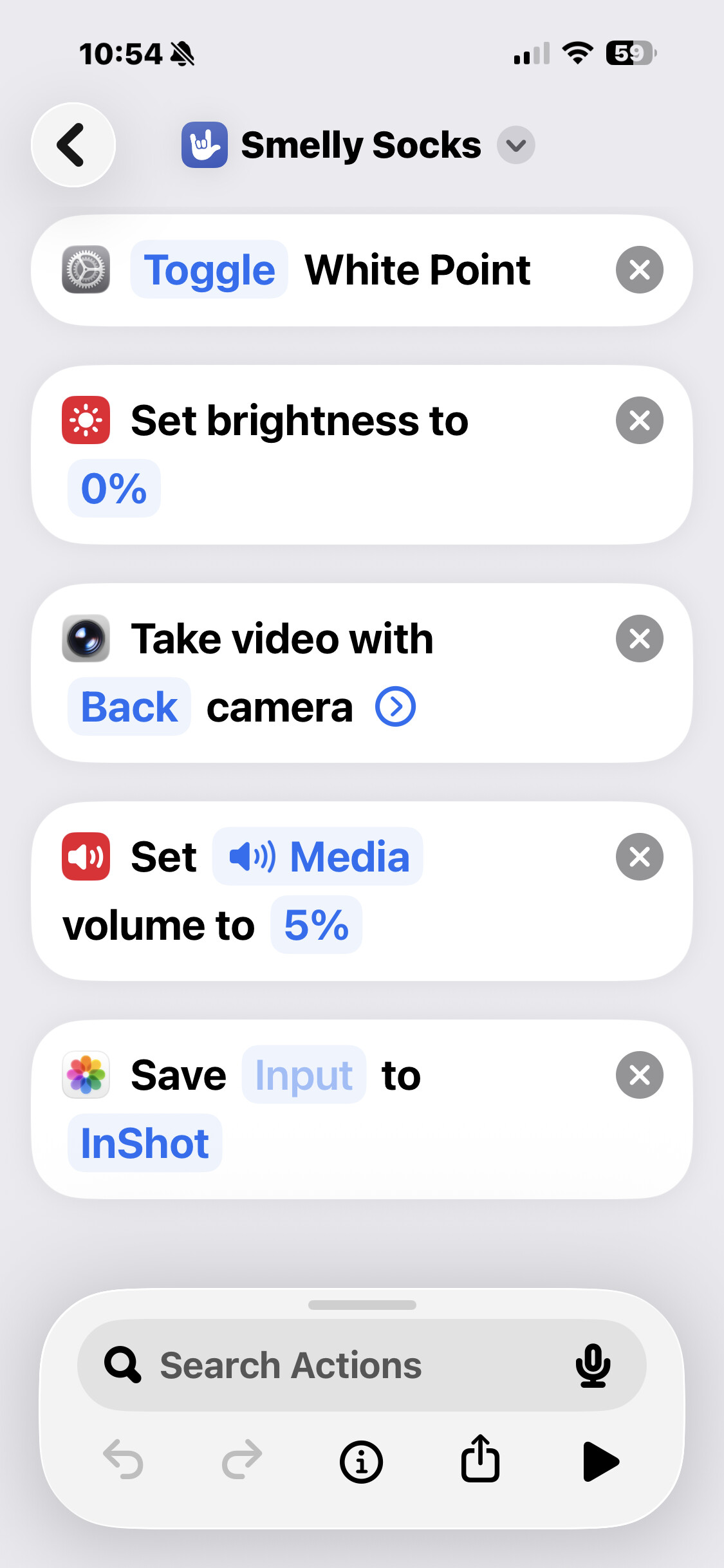
we all have headphones now. If you can say Hey Siri in the headphones you can name the shortcut and be like, “Hey Siri, smelly socks” and get this almost instantly:

4 Likes

It’s laid out great!! Would be nice to explain ‘Setting up Focus’ and why
Or did I miss it

And what is the differences with under the Otherwise? Why the same settings twice?

2 Likes

I gotta thank you for that shortcut again, it really was my entire inspiration for this post, also the green light is a real big issue for me, it’s really impossible to get rid of it completely, this just dims it as much as possible. Apparently the only fix is to use a “LED Light blocking sticker” but I figured that it would look more suspicious as the reflectance of the sticker wouldn’t match the phone and look pretty obvious. The other option would be to use a “Sliding webcam cover” but this only works if you have no screen protector. The fingerprint repelling oil’s that are on the privacy screen protector make it so that webcam cover can’t truly stick on it properly. Also the FastCam app does allow you to change your codec, you can pick from HEVC or H.264. I’ve also had no issue transfering files to my camera roll with no quality loss. Lastly, the only reason I didn’t add the Siri thing is because I thought it would feel awkward saying in the store “Hey Siri”, I’m not sure if its possible but I am pretty sure you can activate shortcuts with triple back tap, but I’ll have to get back to you on that.

1 Like

I have a few shortcuts and different terms that I feel are not difficult to say but I’ve used it in a pinch when I don’t want to look at my phone.

Great breakdown!! Off to the App Store now

1 Like

Great explanation! What is the the alternative to not having an action button?

1 Like

I think I just went over the Setup Focus thing really quickly because it’s just picking a name for your focus mode, should be pretty easy, but the way to do it is Settings>Focus, click the + in the top right, click Custom, skip the icon(unless you care for that), Name it something like “Stealth” or whatever you want, click the Customize Focus button and your done!

I see how, curious why. If using the shortcut what does the focus do? Looks like it controls while/bright settings that shortcut does. Is there a benefit to using focus vs shortcut for those settings? I can’t use Siri to set focus mode

…just trying to get a reason why the focus. I’ll try it out for sure and get back to this. I setup the app already looks good so far, will need to work through transfers and check outcome of video.

2 Likes

You actually have multiple options!
First is to use Siri, just say Hey Siri, open “Shortcut Name”, and as @Lizzy said, you can name it something inconspicuous like Smelly Socks to not draw attention.
The next way is to toggle it through back tapping your iPhone, either triple tap or double tap. If you have a thick phone case this might be a bit difficult though. You can do this by going to Settings>Accessibility>Touch, scroll all the way down to Back Tap and set it to your shortcut.
Another solution could be to use AssisitveTouch, you can set this by going to: Settings > Accessibility > Accessibility Shortcut and select AssistiveTouch. You can add the shortcut into here but I am not sure how to set it up from here. It’s also a guessing game when your screen goes dark.
Lastly, you can add the shortcut to your control panel, but when the screen goes dark, it will be a guessing game on how to close it again, you just have to know exactly where it is.

So the reason for the Focus is how we actually make it a toggle, the shortcut sees if the focus mode is turned on or off, that’s how we get the toggle video feature. Normally with the old shortcut, you would have to manually stop recording with your volume keys or like blindly clicking the stop video button, I got annoyed by that so I wanted to figure out how to make it toggle with just one button click( the action button ), but it would also work for Back Tap too.

Thank you captain obvious..

I only created a detailed guide because I don’t know how technical people are with the latest iOS updates. If that makes me captain obvious, then whatever man. I just want to help as many people as I can, all ages included.

Where can I download the Fast Cam app?

1 Like

It’s only available on the App Store for iPhones, it’s made by Monocraft.

As an Android guy I’m curious, do you need a separate app for the camera to RE-open with these settings? I get the screen settings, but if you were to just open the camera app would the settings from last use still be there?

1 Like

The camera app on iPhone sucks, for some reason on the iPhone 17 Pro, if you initiate the camera app with a shortcut, it causes the flash to open up for some god awful reason. I guess this is Apples way of saying f*ck us. But the camera settings normally do save if your just taking normal photos/videos, that’s why we need a different camera app. Also if you do the shortcut method with the normal camera app, you cannot shut the video off unless you physically tap one of the volume buttons or the big red start video button while the phone is black.

1 Like

Ahh ok, I get it. I missed you mentioning the volume button. Got me thinking, why is that phone so different? Seems about the same minus the flash.

I wasn’t a dark screen shooter until I got a phone with a built in privacy screen but I keep tapping the screen with my leg and swapping to the front cam. Lost 2 great caps recently

Yeah the flash is definitely something new, didn’t realize that they do that on iPhones when you do Take Video shortcuts (Probably a new iPhone issue, or maybe it’s something to do with the updates? Hopefully someone can confirm). Definitely intentional though.

Also for the issue with you tapping your screen with your phone, I think the best solution I heard on here was getting a wallet phone case that you can cover your entire screen with.

Hey guys, noticed a bug with the app, not sure if it affects everyone, but I noticed if you have the app running in the background, then run the shortcut, your video will not save, it will just be a 0 second video. Caused me to loose some great caps, just a heads up, but other than that the app works great, just wish we could find a better free alternative, I’ll try looking again very soon.